
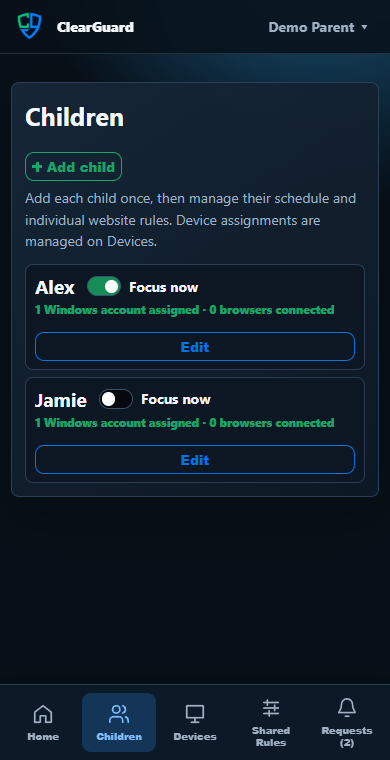
ClearGuard FamilyDemo Parent ▾Children
Create and manage each child’s profile.
Add child
Child name
Alex
1 Windows account assignedNext step
Choose a weekly focus schedule and website rules.
ClearGuardFamily demo
Page through the setup and everyday controls. Each screen shows where to go, what to choose, and what ClearGuard does next. Illustrated desktop previews and real mobile screenshots use demonstration data.
ClearGuard FamilyDemo Parent ▾Create and manage each child’s profile.
Child name
Choose a weekly focus schedule and website rules.
ClearGuard AdministratorPairedComplete the three steps in order.
This PC is connected to your ClearGuard Family portal.
ClearGuard FamilyDevicesAssign synced Windows accounts to children.
ClearGuard FamilyAlexWeekly focus schedule
ClearGuard FamilyAlex’s rulesRules for Alex
ClearGuard FamilyDemo Parent ▾Set up your family, then manage everyday controls.
This alert appears only when requests are pending.
1. Add your child
2. Install and pair each PC
3. Assign and test
4. Connect with your phone
Click your name for Settings, My Account, Help, and Sign out.
Connected browsers and Windows PCs check for changes about every 30 seconds. Offline devices update after reconnecting.
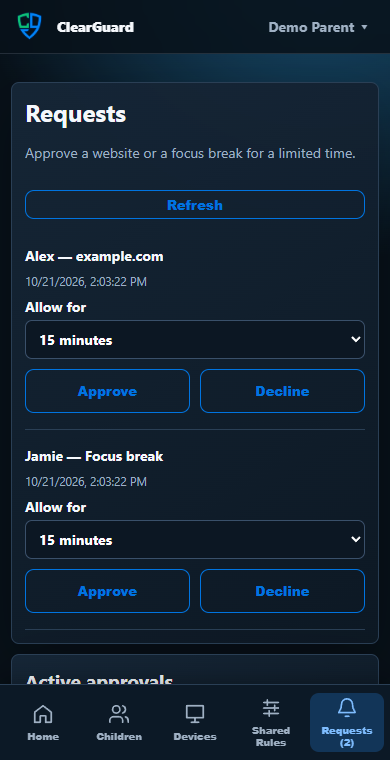
ClearGuard FamilyDemo Parent ▾Approve a website or a focus break for a limited time.
Allow for: 15 minutes
Allow for: 1 hour
Requests contain the child/device identity, request type, and website domain—not screenshots or page content.


Ready when you are
You can add more children, devices, schedules, and rules whenever your family needs them.