No screen capture
ClearGuard does not record or stream screens.
 ClearGuard
Product tour
Preview the setup, controls, and privacy protections built into ClearGuard.
ClearGuard for families
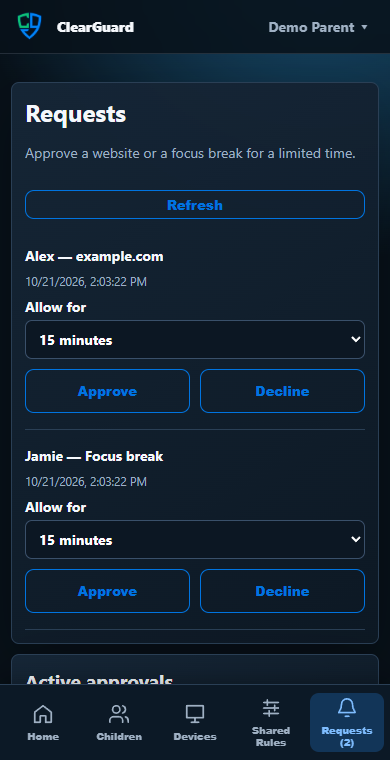
Create each child, pair each Windows PC once, then manage schedules, apps, website rules, and approvals from your parent portal.
ClearGuard for schools
Teachers get practical classroom tools while students get visible, predictable protections and clear privacy boundaries.
Classroom status updates automatically.
Connected · Sharing visible status
Allowed by classroom policy
ClearGuard does not capture keystrokes, messages, camera, microphone, or location.
Privacy is not an add-on
ClearGuard does not record or stream screens.
No keystroke logging, private-message reading, camera, microphone, or location access.
Families and students can understand when connections and website rules are active.